CygNet FMS ActiveX Controls - Properties, Methods, and Events
CygNet Studio is an object-driven environment. The controls that you place on a studio screen are treated as objects when scripting, and therefore include a set of properties, methods, and events relevant to the object type.
The screen itself is also an object, called TheView. On a new screen, this is the only object in the script editor’s Object drop-down menu. In particular, TheView contains an event called EventInitialize. This event fires once each time the screen runs, so it is a useful location for initialization logic.
See CygNet Scripting Guide in the Scripting section for more information about scripting in CygNet.
See CxHmiFms in the Scripting section for more information about properties, methods, events, and scripting examples for specific FMS control objects.
Properties
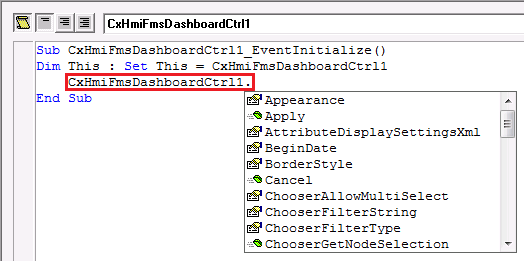
To view the properties  associated with each object placed on a screen, double-click an object to access the script editor. Type the object’s name followed by a period to display the selected object's methods and properties in a menu. Properties can also be viewed in the Property window.
FormCode and ObjectCode
The FormCode property is unique to TheFrame/TheView. It is its unique identifier. It is always shown in parentheses on the Property Sheet for TheFrame/TheView.
The ObjectCode property applies to each object added to TheView. It is the unique identifier of the object. The default ObjectCode represents the tool type and the instance of the tool (for example, CXHMIFMS1). The ID can be changed. Valid characters are A-Z, 0-9, and underscore (_). The ID cannot contain spaces and can be a maximum of 39 characters. It is always shown in parentheses on the Property Sheet for the control.
CygNet Properties
The properties that represent CygNet items are listed on the Property Sheet in square brackets. These properties define what point the item is tied to, what it displays, how it displays alarm information, etc.
Formatting Properties
The unbracketed properties are general formatting properties, such as the font, text alignment, rotation, foreground color, background color, etc.
Methods
To view the methods  associated with each object placed on a screen, double-click an object to access the script editor. Type the object’s name followed by a period to display the selected object's methods and properties in a menu.
Events
Each object placed on a screen has a set of associated events. To view these events, double-click an object to access the script editor. The object’s events are listed in the Event drop-down menu on the right.

More:
 CygNet FMS ActiveX Controls - ActiveX Properties
CygNet FMS ActiveX Controls - Methods
CygNet FMS ActiveX Controls - Events


